Every feature in WakeWorks, the DMS for boat dealers
WakeWorks is a dealer management system for boat dealerships. It runs sales, service, parts, CRM, texting, marketing and payments in one web app, with a mobile app for iPhone and Android. Everything on this page is live in the product today.
Updated
Sales and deals
WakeWorks runs a boat deal from first quote to cashiered. Reps see the margin and out-the-door price on the deal as they work the numbers. Managers set a margin floor the system enforces. The buyer's order, e-signature, deposit and commission all happen on the same deal.
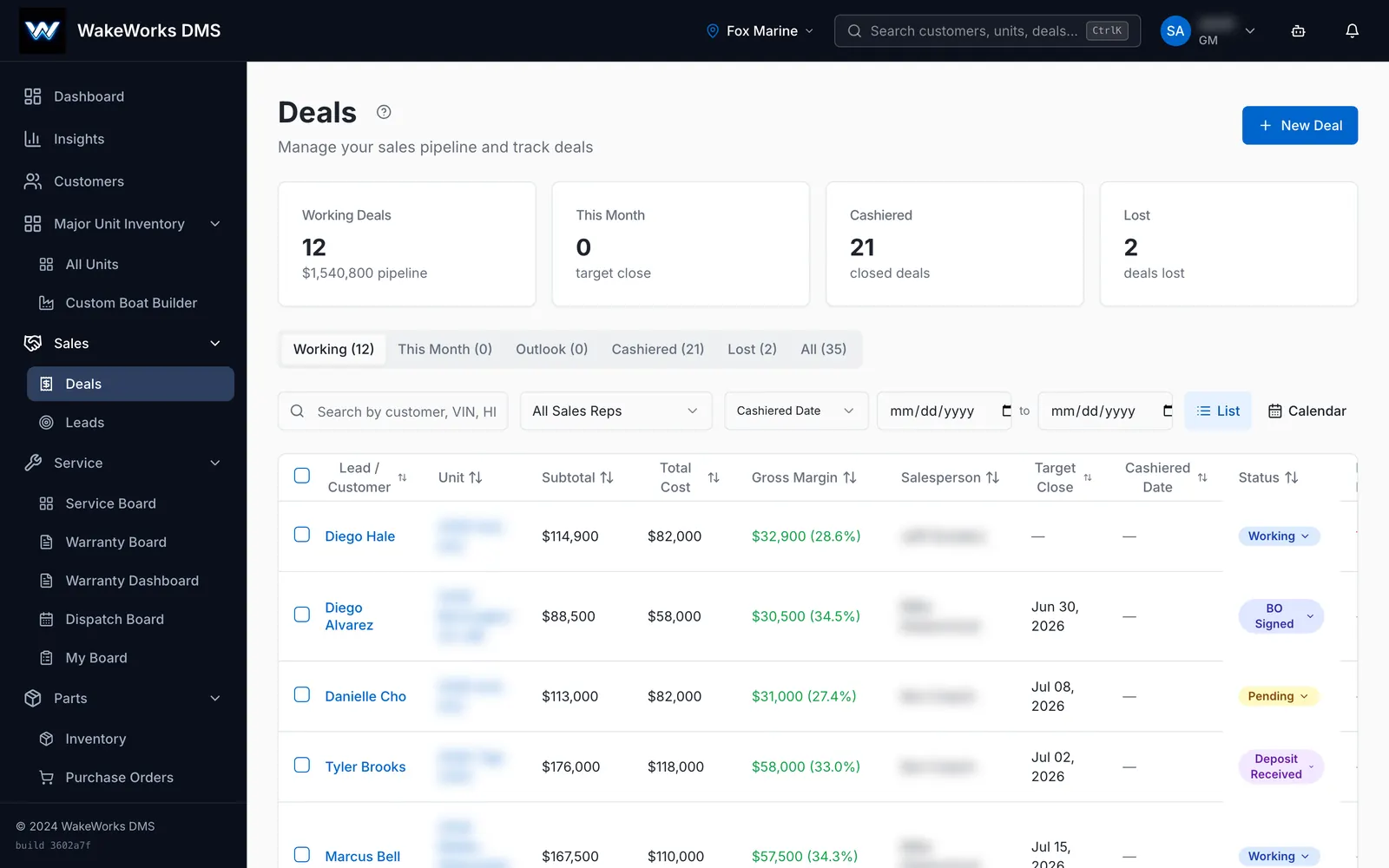
- Deal wizard. Four steps: customer, boat, price, review.
- Margin on the deal. Change price, trade, fees or finance terms and the deal shows the new gross and out-the-door price.
- Margin floor. A deal below your minimum cannot be cashiered until a GM approves with a PIN. The PIN is checked on the server.
- Trade-ins. Allowance, actual cash value and payoff on each trade. More than one trade per deal. Pre-sell a trade before the deal closes.
- Buyer's order in one click. Pricing, trade, financing, deposits and tax on one printable page.
- E-signature. Send by email, text or link, co-buyer included. If the boat or trade changes after signing, the deal is flagged to sign again.
- Deposits. Take a card, send a pay link, or record cash, check or wire. A receipt goes out either way.
- F&I menu. Service contracts, GAP and protection products, with your margin on each.
- Deal jacket. Your state forms fill from the deal. Upload a blank form and AI suggests which fields map to which data. Only staff who can edit store settings can change the templates.
- Package builder. Engines, trailers, electronics and accessories on one deal, with serial numbers.
- Commissions. Calculated when the deal closes, with a full history per rep.
- Deal board and calendar. Every deal by stage, rep, margin or target close date.
Sales tax rules for each store
Each store sets its own sales tax rules in Store Settings, under Tax Configuration. One rule on the server prices the tax, so the deal screen, the buyer's order and the sales invoice show the same number. Only staff who can edit store settings can change the rules, and the server checks it.
- Four tabs. Rates, Unit classes, Trade credit and Out-of-state.
- Local rates. Add rates by the buyer's county or city, each with an effective date. Import and export them as CSV.
- Out-of-state buyers. Pick a rule for each destination state: our normal tax, the lower of their state or ours, or no tax. Each rule holds their rate, whether their state gives trade credit (yes, new units only, or no) and their minimum tax. Rules start on the date you choose, and import and export as CSV.
- Delivery out of state. Separate switches make a unit tax-free when a common carrier or your own truck delivers it out of state.
- Trade-in credit by class. For each pair of trade and purchase class (motor vehicle, recreational vehicle, vessel or other), choose full credit, capped or no credit. A cap takes a start date, so a new cap waits for the day it applies. Leave every pair at full credit and trade-ins reduce tax the way they always have.
- Unit classes. Map each unit type to a tax class. A type can require a 17-digit VIN.
- Rebates. A switch lets manufacturer rebates reduce the taxable price.
- Tax recap on the deal. See the trade credit applied to tax, the lower-of math for both states, and reminders such as a missing bill of lading.
- Out-of-state document number. Name your paperwork, such as an in-transit permit, and enter its number on the deal. Staff who can edit deals can add it after the sale, and the sales invoice shows it.
- Tax that stays put. The buyer's address and delivery method freeze when the deal is cashiered, and a cashiered deal keeps the tax on its posted invoice.
Boat inventory
Every unit lives in one place: new, used, consignment and on order. Aging is color-coded on every unit, so you can see what is getting old before it costs you. Scan the factory paperwork and the unit record fills itself in.
- All unit types. Boats, personal watercraft, trailers and more, searchable by hull ID, year, make and model.
- Aging at a glance. Green under 60 days, amber to 90, red past 90.
- Scan to create. Photograph an MSO, factory invoice or window sticker. AI reads it and fills in the unit.
- Pricing. Set list price from MSRP by margin. Keep freight, prep and rigging off the window sticker.
- Photos and window sticker on every unit.
- Consignment. Track the consignor. A consigned unit cannot go on a deal without one.
- Factory orders and custom builds. Import a manufacturer price sheet, then build a customer's boat step by step with option rules.
- Floor plan. Balance owed, interest, curtailments, payoff on sale and interest-free days left, per unit.
- Pre-delivery inspection checklists a unit must pass before delivery.
- One click from a unit to a new deal or a new repair order.
Service department
WakeWorks takes a repair order from write-up to signed invoice. Advisors get suggested jobs from your own shop history. Managers see every tech's booked hours against capacity. Customers approve estimates by e-signature, with video of the work when the tech records it.
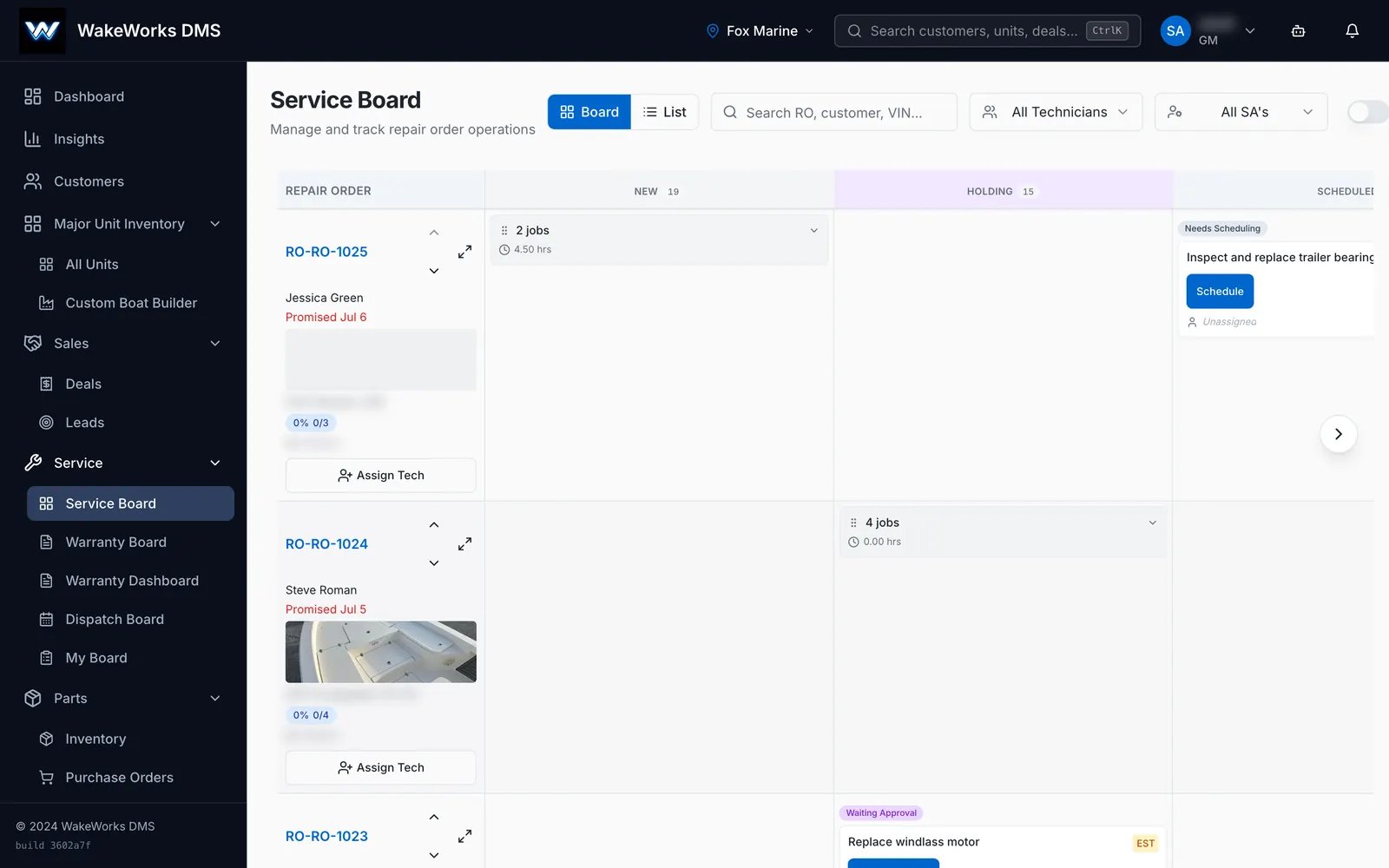
- Repair orders with operations, parts, labor, photos, documents and a full activity log.
- Suggested jobs. Open an RO and WakeWorks suggests jobs for that make, model and year from your shop's own history, plus the parts that usually go with them.
- Canned jobs with labor and parts, added in one click. Import your list from Excel.
- Estimates. The customer approves or declines by e-signature before work starts.
- Service board. Drag a job between status columns. Moving a job with an unapproved estimate records how the customer approved.
- Your board, your columns. Each store picks one of two boards and can switch at any time. On the Standard board, WakeWorks moves each job as the estimate is approved, parts arrive, the work is scheduled and the invoice goes out. You rename and recolor its columns, give each one a short name for phones, and choose who gets a notice when a job reaches each status: the service advisor, the assigned tech or your service managers. On a Custom board, you build the columns you need and move every job by hand. Rename the boards, and hide the Warranty Board once every warranty job is marked paid. How shops use it.
- Dispatch board. Each tech's booked hours against capacity. Drag to reassign.
- Labor rates by pay type. Customer pay, warranty, internal and employee pricing apply automatically.
- Warranty board. Every warranty job from pre-authorization to paid, with claim numbers, failure codes and aging.
- Video on estimates. The tech records the work. The customer watches it and approves or declines each job.
- Service reminders. Boats come due by engine hours, months or both, and roll straight into a text or email campaign.
- Labor tax rule per store. Always, never, or only when parts are on the RO (the Florida rule), with an optional tax cap per RO.
- Shop supplies. Off until you turn it on. Set a percent of labor, parts or both on customer-pay work, an optional dollar maximum per RO, and whether the line is taxed as parts, as labor or not at all. The advisor can change, remove or restore it on an open RO. It shows on estimates, ROs, invoices and the customer's estimate approval, and it locks once the RO is invoiced.
Technician app
Technicians run their day from a phone. They see their own job queue, clock on and off each job, scan parts onto the repair order, and attach photos and video without walking to the front desk.
- My Board. Not started, in progress, front office needed, tech complete.
- Clock on and off each job with a live timer.
- Scan parts onto the RO with the phone camera.
- Photos, notes and video up to three minutes on each operation.
- Shop time clock. A shared kiosk where staff clock in by PIN.
- Hours today and what is next, on the tech's own dashboard.
Parts department
The parts counter scans, sells and receives by barcode. Reorder points sit on every part, and WakeWorks shows what is already on order before you order it twice. Snap a photo of a supplier invoice and AI builds the purchase order for you.
- Counter sales by barcode. Cash, card, employee pricing or charge to account. Void and refund later.
- Supersession. A warning the moment a scanned part has a newer part number.
- Reorder points. Min and max per part per store, with a suggested order quantity.
- Know what is on order before you order again.
- Snap an invoice, get a PO. AI reads a supplier invoice or packing slip and builds a PO or receives against an open one.
- Receive by barcode, with cost-change alerts and shelf labels printed in one batch.
- Count flags. Parts that sell past what is on hand get flagged, with a count sheet for just those parts.
- Suppliers. Contacts, terms and minimums, with bulk price list import.
- Full part history. Every receipt, sale, RO use and adjustment, and who made it.
- Shared barcode library (opt-in). Barcodes other dealers have tagged are suggested to you. Only the barcode and part number are shared, never price, cost or stock.
CRM and leads
Every lead and customer sits on one Customers page, whatever the source. WakeWorks routes it to the next rep in the rotation, scores it, and keeps every text, call, email and social message on the customer's timeline. One click turns a lead into a deal.
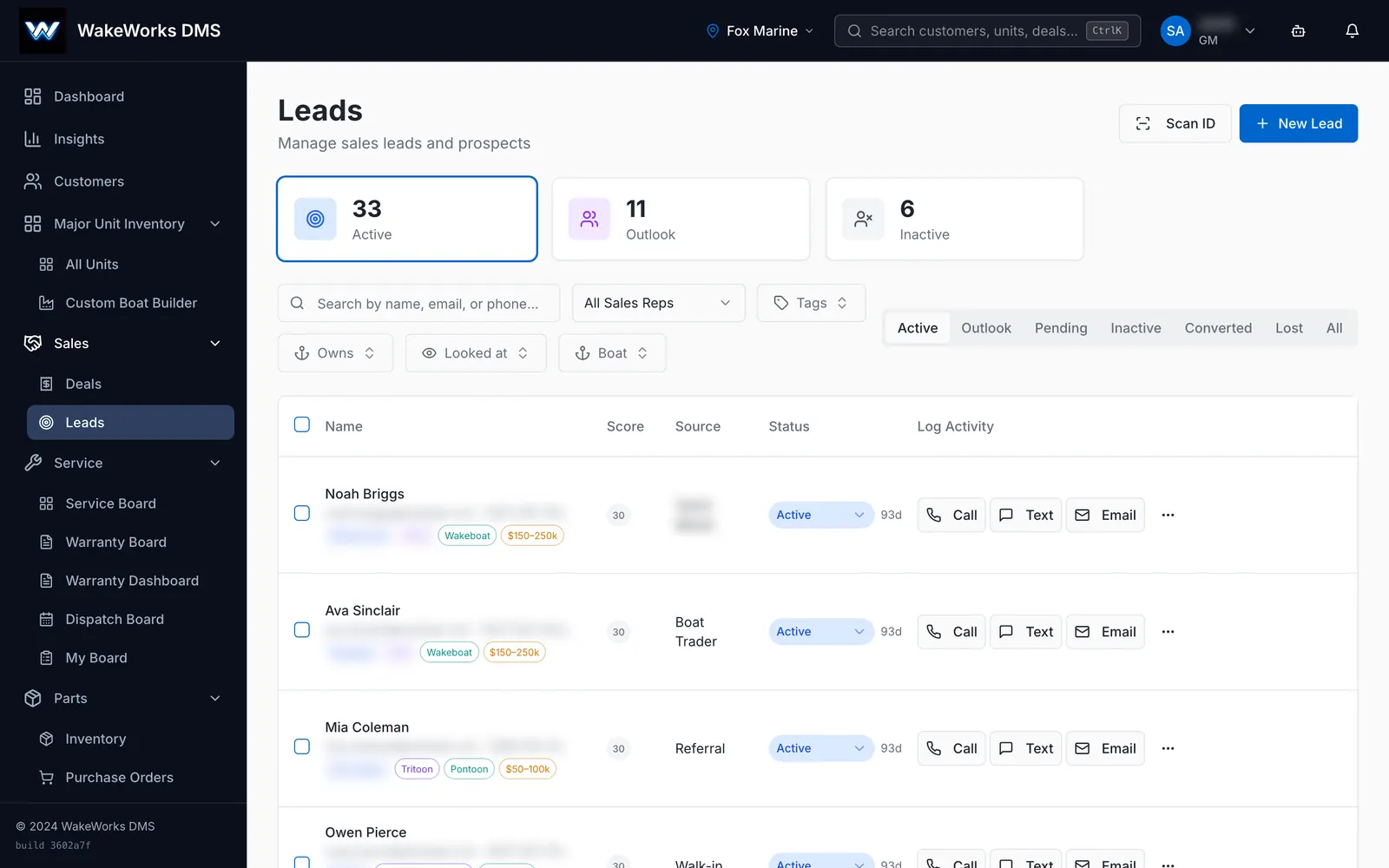
- Every source in one list. Your website, Boat Trader, Facebook lead ads, Facebook and Instagram messages, email and walk-ins.
- Leads and customers on one page. All, Customers and Leads tabs share the same columns: score, source, status, assigned rep, next follow-up and the latest note. Add a customer straight from the page with New Customer on the All and Customers tabs. It uses the same form and duplicate check as a repair order, and New Lead sits beside it on All.
- Follow-ups on anyone. Set the next follow-up on any customer, not only an open lead. A second reason adds to the note, and the earlier of the two dates holds.
- You choose who sees whom. The "Reps and advisors see" setting shows each rep their own people, or everyone. Managers always see everyone. Seeing a lead never lets a rep edit another rep's lead.
- Suggested sequences on the list. WakeWorks suggests a follow-up sequence for each person and says why. Start it, or decline and set a follow-up date. A manager can assign an unassigned person to a rep, or keep them.
- Service messages from service. Estimate, service reminder, warranty and follow-up campaigns are signed by the repair order's service advisor, then the customer's most recent advisor, then the store's default service contact. Their call tasks go to that person.
- Referral and BoaterCoupons leads greeted once. When Warm Welcome or Redeem & Ride is on and will enrol the lead, Speed to Lead steps aside for that person.
- Round-robin routing per lead source, with a fallback rep and a response-time target.
- Lead scoring that flags hot leads on the CRM dashboard.
- Lead to deal in one click, carrying the customer record across.
- One customer timeline for texts, calls, emails and social messages.
- Scan a driver's license to create the customer.
- Customer map. Draw a radius, see every customer inside it, then export the list or add it to a campaign.
- Suggested next steps, like a hot lead to call or a service reminder to send.
- Google Calendar and Outlook events show in WakeWorks.
Two-way texting
WakeWorks is a marine DMS with two-way texting built in. Your team sends and receives texts from your dealership's own numbers, and replies land on the customer record. Opt-outs are honored automatically, and every message shows whether it was delivered.
- Your own numbers. Connect your Twilio account, then search and add numbers by area code. Each rep can have their own.
- Replies land in WakeWorks on the customer or lead record.
- Unassigned texts inbox for a manager to route.
- Delivery status on every message: sent, delivered, undelivered or failed.
- Opt-out handled. STOP, UNSUBSCRIBE and the other standard words block future texts store-wide. START opts back in.
- Consent on the record. Opt-in is stored on each customer.
- Registration status for your business texting shown live in settings.
- Automatic retry once when a carrier has a temporary failure.
- Texts in campaigns and follow-up sequences, with merge fields.
- Optional AI auto-reply for simple questions about availability, price, location and hours, using your own data. It stays quiet on anything else.
How WakeWorks handles texting consent →Texting integration →
Email marketing and campaigns
Build campaigns from your own customer data, not a bought list. Drag blocks into an email, drop in live inventory that matches each reader, and send from your own domain. Sequences stop on their own when a customer replies.
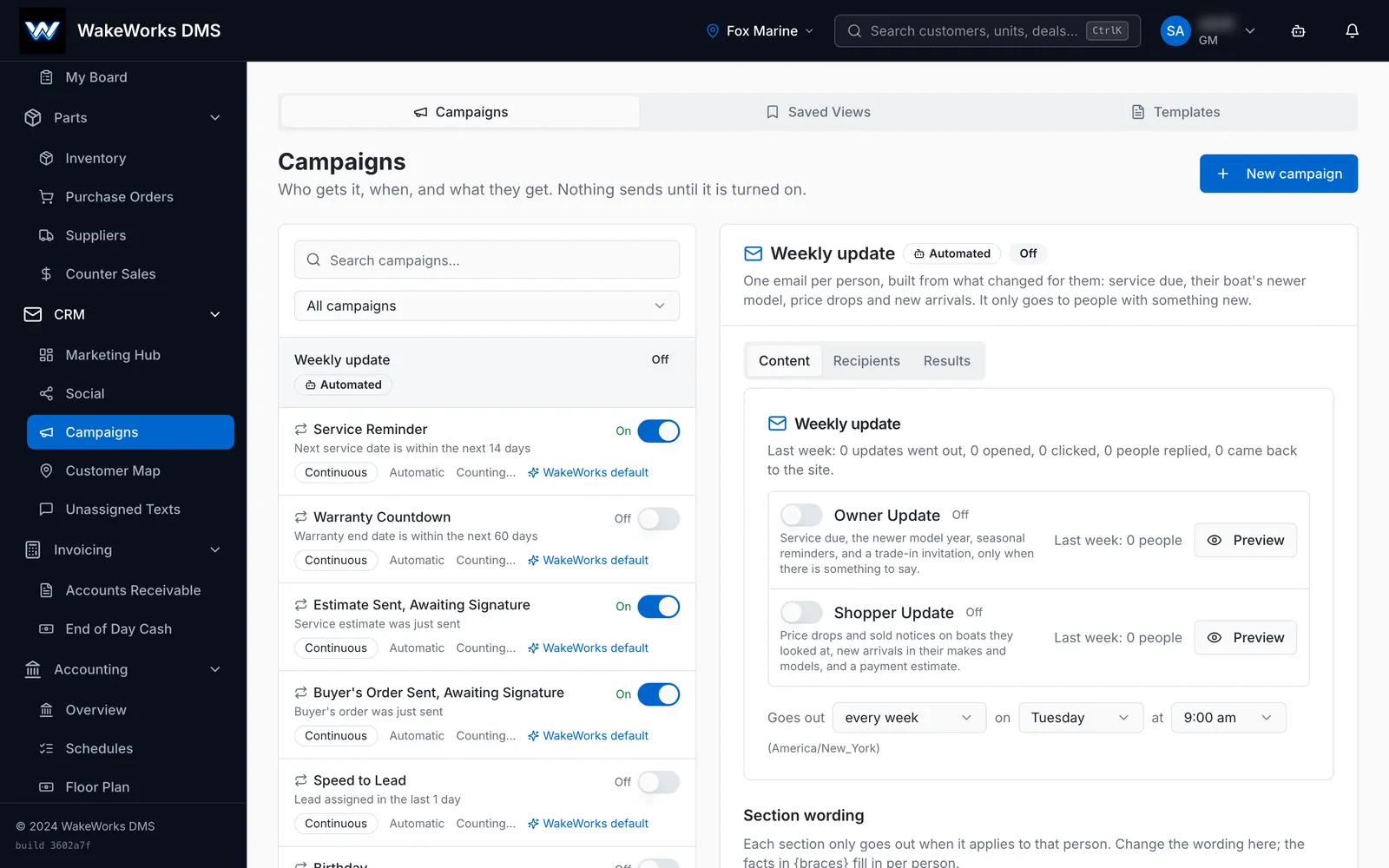
- Drag-and-drop builder. No HTML needed.
- Live inventory blocks fill with each reader's best-matched boats when the email sends.
- Service-due and warranty blocks fill with each customer's own dates.
- AI drafts an email from a short description. You edit it before it goes.
- Blasts or sequences. One-time sends, or multi-step follow-ups that stop when the person replies.
- Smart audiences from purchase history, service history and engagement that update themselves. Or upload a list.
- 29 ready-made campaigns. 25 sequences, 3 blasts and a weekly update email, written before your first login. Five run from day one.
- See who gets it. Each campaign shows its "Who gets it" and "Stop when" conditions with AND and OR. "Who gets it" shows a live count of who matches. Edit a row in place. Steps show as a timeline, with split versions labelled. Continuous campaigns carry a Manual or Automatic chip. Manual means reps enrol people from a suggestion, and Automatic means everyone who matches is enrolled.
- Weekly update built from blocks. New arrivals, seasonal and in-stock blocks, each with its own conditions, count, on/off, wording and preview. Add, reorder and delete your own blocks. Boat cards show each boat's cover photo, the same one WakeWorks uses everywhere else. A boat with no photos shows no image, never a stock photo. Leads who agreed to texts get a short text when their email has new arrivals, once your website link is set.
- A review page for your store. Leave a Review links to a page with your branding, a Google review button, and a Facebook review for customers without a Google account. Opening the page stops the reminders. Set both links in Store Settings.
- Service date reminders 14, 3 and 1 days before a booked appointment. A date moved later moves the reminder with it.
- Save our contact card. The post-purchase email has a button that downloads your store's contact card.
- Send from your own domain. WakeWorks gives you the DNS records and checks them.
- Campaign Senders. Named From identities for your staff, each with a daily cap that ramps up over the first month.
- Suppression built in. Bounces and spam complaints are suppressed automatically. Every campaign email has one-click unsubscribe.
- Results per campaign. Sent, opened, clicked, replied and unsubscribed.
- Pre-send checklist and a test send to yourself.
Your dealer website
Dealer websites built on WakeWorks stay in step with the DMS. Units publish from the unit page, form leads land in the CRM, and your team edits banners, blog posts and page titles without a developer. Any other website can add the WakeWorks tracking tag to tie visits and form fills to leads.
- Publish units to your WakeWorks-built site, with live status and auto-sync.
- Website form leads land in the CRM and follow your routing rules.
- Edit without a developer. Content blocks, promo banners, blog posts and showroom models.
- SEO fields for every page, and AI can write the titles and descriptions.
- Hide a unit from the site without changing its status.
- Tracking tag for any site. Ties visits and form fills to leads, and respects browser privacy signals.
- Match units to pages. WakeWorks finds each boat's page on your site for links in emails.
Payments
Take deposits, invoice payments and counter sales by card. WakeWorks works with Stripe, CardPointe and Fiserv Commerce Hub. Pay links work with all three, and phone orders with CardPointe or Fiserv. Payment status updates itself when the processor confirms the charge.
- Your choice of processor. Stripe, CardPointe or Fiserv Commerce Hub.
- Pay links by email or text for deposits, estimates and invoices.
- Phone orders taken by card, with CardPointe or Fiserv.
- Cards on file stay current when a bank reissues a card, if you enroll in CardPointe's Card Account Updater.
- Refunds from the invoice or counter sale, with Stripe or Fiserv.
- Automatic status. Charges, refunds and disputes update the invoice or deal on their own.
- Returned ACH payments are caught and reversed automatically, with CardPointe.
Where WakeWorks uses AI
WakeWorks uses AI for the reading and writing that slows staff down. It reads invoices, factory paperwork and IDs, and it drafts emails and listings for a person to check. Suggested jobs on a repair order come from your own shop history, not from AI.
- Reads documents. Supplier invoices, packing slips, MSOs, window stickers and driver's licenses.
- Drafts emails from the record or from a short description.
- Maps imports. Suggests which column in your spreadsheet goes to which field.
- Maps state forms for the deal jacket.
- Writes SEO copy for your website pages.
- Answers simple texts about stock, price, location and hours, if you turn it on.
- In-app help. A support chat that knows the page you are on, reads your own policy articles, and hands off to a person.
- Your own AI key, if you prefer to run document scanning on your own account.
Dashboards and reports
Every person gets a dashboard built for their job, from the GM to the parts counter. Build your own reports, schedule them by email, and get one daily email with the alerts that need attention.
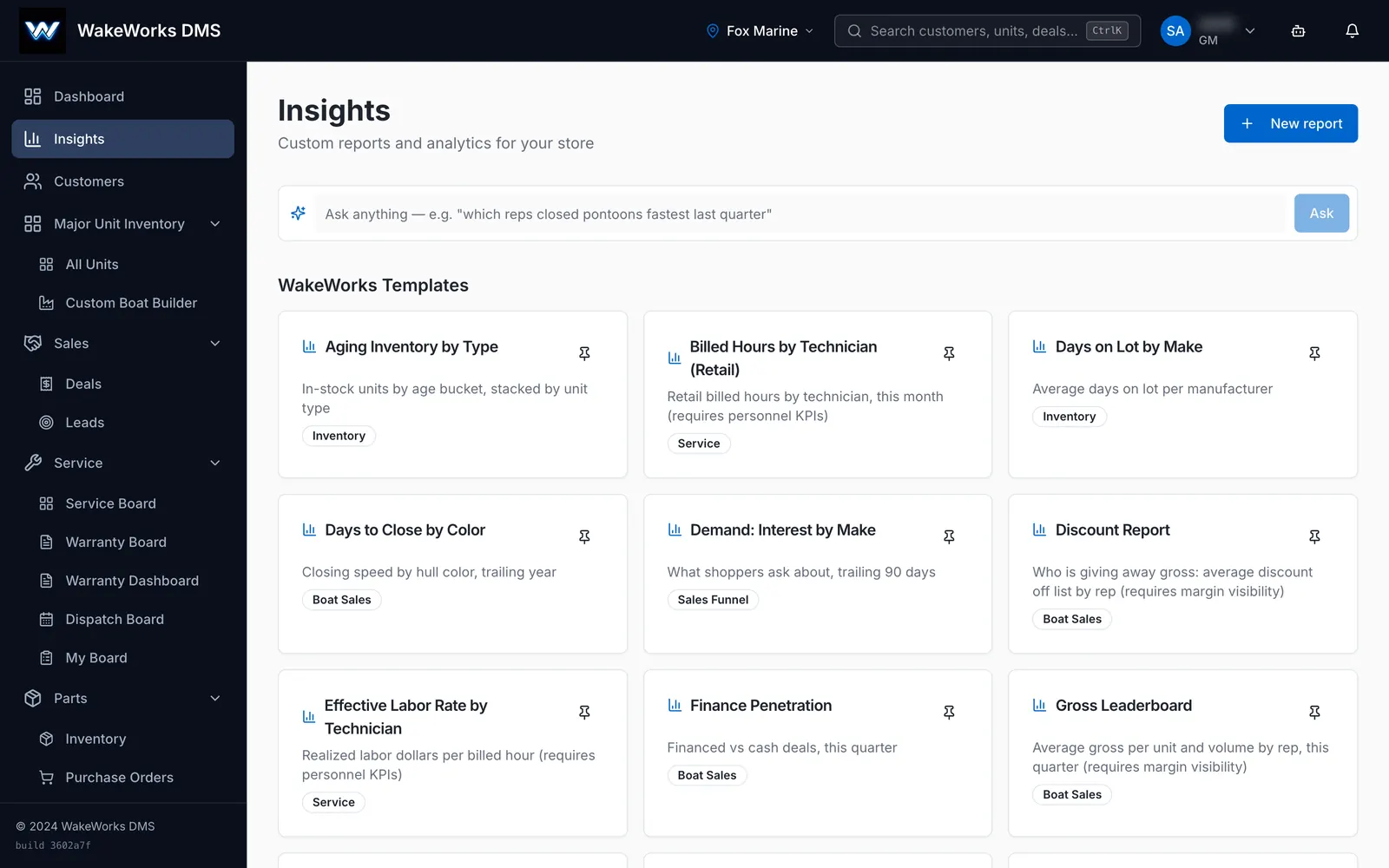
- A dashboard per role. Executive, sales manager, rep, service manager, advisor, technician, parts manager, counter and accounting.
- Report builder. Pick the data, filters, date range and chart. Export to CSV.
- Scheduled reports by email, weekly or monthly.
- Daily email digest with low-gross deals, unassigned leads, past-due invoices and reorder alerts.
- Budget against actual for the GM, by month.
- Notifications for mentions, assignments and incoming texts.
Accounting
Turn on the accounting module and WakeWorks keeps the books too. It covers the daily close, receivables, payables, bank reconciliation, sales tax and month-end. Stores that keep their own books can export to QuickBooks Desktop instead.
- General ledger. Chart of accounts, journal entries and reversals.
- Daily close. Receipts, drawer count, deposit slips and card batches. Lock the day. Reopen only with a GM PIN.
- Receivables. Customer statements, AR aging, charge and credit memos.
- Payables. Vendor bills with approval thresholds, check runs and recurring bills.
- Bank reconciliation. Import a statement and match lines to the ledger.
- Sales tax by jurisdiction, mapped to Florida's DR-15 lines. On a lower-of out-of-state sale, the part your state did not tax is reported as exempt out-of-state.
- Shop supplies post to their own Shop Supplies revenue account.
- Financial statements. Income statement, balance sheet and trial balance, with drill-down.
- Month-end close with schedule tie-outs and sign-off.
- Payroll export of earned commissions by pay period.
- QuickBooks Desktop export in IIF or CSV, checked for balance before download.
Marina and slips
Dealers who run a marina can manage slips, racks and launches in the same system. Contracts bill on a schedule, meters bill by use, and autopay charges the card on file.
- Slip and rack board with drag-and-drop occupancy.
- Rental contracts with term, billing cycle, deposit and autopay.
- Billing runs for every contract at once, including meter charges.
- Launch queue that texts or emails the customer at each step.
- Rate cards, renewal windows and late fees.
Mobile app for iPhone and Android
WakeWorks has a mobile app for iPhone and Android. Sales reps, service advisors and technicians each get their own home screen. The phone camera scans barcodes and captures photos and video straight onto the record.
- A home screen per role. Sales reps, service advisors and technicians get their own. Managers and parts staff get the overview.
- Barcode scanning for lookups, adding parts to ROs, receiving, and tagging a new barcode to a part.
- Photos and video on units and repair orders.
- Personal time clock.
- Push notifications that open the right record.
- Two-factor sign-in on every account, by authenticator app or text code.
Multi-store groups and permissions
One account covers every store in your group. Owners switch between stores from one login, and each store keeps its own inventory, staff and reporting. Roles come preset, and managers adjust each person's access module by module.
- One login for every store.
- Each store keeps its own inventory, staff, service queue and reporting.
- Parts stock visible across stores.
- Per-person access, adjusted module by module.
- Two-factor sign-in with an authenticator app or a text code. A manager who can edit employees can reset someone's two-factor when they get a new phone, which also signs them out everywhere.
- Signed in all store day. On the web app, sign-in follows your store hours, so staff are not signed out while the store is open. After closing, a computer nobody is using signs out after about an hour.
- A dropped connection does not sign anyone out. WakeWorks shows that it is reconnecting and keeps your screen as it was. If a sign-in does end, you sign back in over the same screen and carry on.
- Saves you can safely repeat. If the connection drops mid-save on a payment, deposit, refund, repair order or deal, WakeWorks checks whether it went through, so a retry or a double click does not create a second one. A card refund it cannot confirm is held for a check instead of being sent again.
- Deactivate someone and they are out. Turning off an employee ends their sign-ins on every device. WakeWorks refuses their requests at once, and an open screen returns to the sign-in page at its next check.
- Your data is isolated from every other dealership at the database level.
Switching to WakeWorks
We move your customers, leads, units, deals and more into WakeWorks within 5 business days. Most single stores are live in 4 to 6 weeks, and multi-store groups in 8 to 12. Training runs over two weeks, with more sessions whenever you need them.
- We do the data move as part of onboarding.
- Spreadsheet import for customers, units, parts, deals and repair orders.
- AI column mapping that you review before import.
- Dry run first. See what will be created, matched or skipped before anything is saved.
- Virtual training for your whole team.
Frequently asked questions
What is WakeWorks?
WakeWorks is a dealer management system (DMS) for boat dealerships. It runs sales, service, parts, CRM, texting, email marketing and payments in one web app, with a mobile app for iPhone and Android. It is made by WakeWorks, LLC, an independent company in St. Petersburg, Florida.
Does WakeWorks have a mobile app?
Yes. WakeWorks has a mobile app for iPhone and Android. Technicians clock jobs and scan parts onto repair orders. Sales and parts staff look up units and parts by barcode. Everyone gets push notifications that open the right record.
Can WakeWorks text customers?
Yes. WakeWorks sends and receives texts from your dealership's own numbers through your Twilio account. Replies land on the customer record, opt-outs are honored automatically, and every message shows its delivery status. See our texting terms.
Which payment processors does WakeWorks work with?
WakeWorks works with Stripe, CardPointe and Fiserv Commerce Hub. Pay links by email or text work with all three. Phone orders work with CardPointe or Fiserv.
How long does it take to switch to WakeWorks?
We move your data within 5 business days. Most single stores are live in 4 to 6 weeks. Multi-store groups take 8 to 12 weeks.
How is WakeWorks priced?
WakeWorks is one monthly price per dealership, with no tiers or packages. Book a demo for a quote. See how billing works.
Is WakeWorks tied to a boat or engine maker?
No. WakeWorks, LLC is an independent company. It is not affiliated with any manufacturer or other DMS vendor, and it works with dealers of every brand.
How does WakeWorks handle sales tax for out-of-state boat buyers?
You set a rule for each destination state in Store Settings: charge your normal tax, the lower of their state's tax or yours, or no tax. Each rule holds their rate, whether their state gives trade-in credit, and their minimum tax. One rule on the server prices the tax, so the deal, the buyer's order and the sales invoice agree. WakeWorks does not preload state rates. You enter your own. How state tax rules work.
Can WakeWorks add a shop supplies fee to repair orders?
Yes. Turn on shop supplies in Store Settings and set a percent of labor, parts or both on customer-pay work, an optional maximum per repair order, and whether the line is taxed as parts, as labor or not at all. The advisor can change or remove it until the repair order is invoiced.
See WakeWorks run your dealership
A 30-minute demo walks through the modules you care about, in the real software.
Facebook and Instagram
WakeWorks connects your Facebook Page and ad account during setup. Lead ads, messages and comments come into WakeWorks as leads, and your team replies from there. Post, boost and sync inventory to your Meta catalog without leaving the DMS.
Facebook and Instagram integration →